Ever pick up your phone intending to check one thing and find yourself lost down an endless scroll minutes (or hours) later? You’re not alone – recent data shows Americans spend over 5 hours daily on their phones. This is where your Android’s built-in Digital Wellbeing tools come in, offering surprising insights into your phone use to help you become more aware and take control.
Contents
 Android phone displaying Digital Wellbeing screen time dashboard
While they help set limits, their real power lies in revealing how you actually use your device. You might be surprised by what your phone knows about your daily digital life. Let’s dive into six key things Digital Wellbeing can show you.
1. See Which Apps Flood You With Notifications
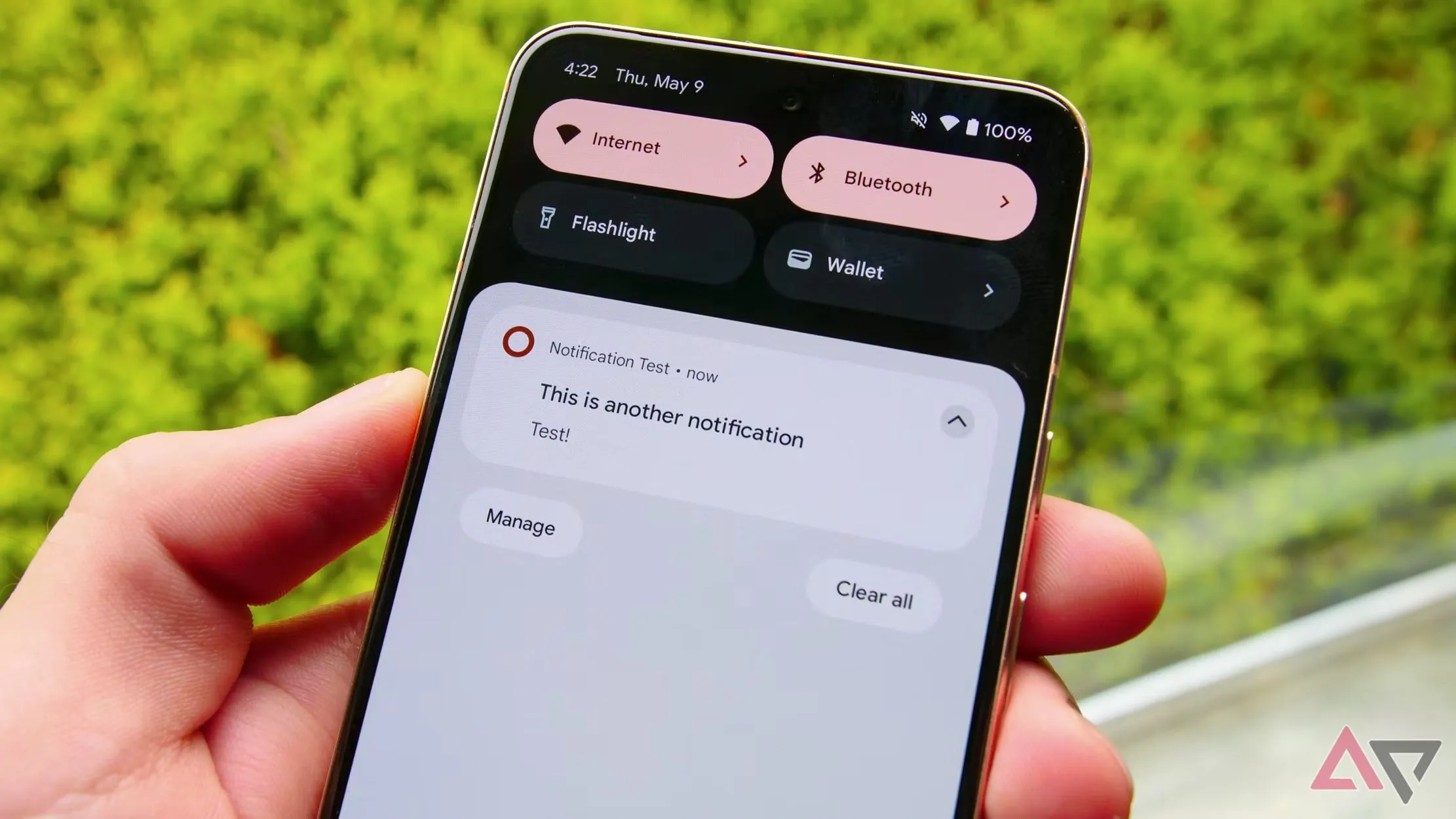
Are constant pings pulling you to your phone? Notifications are a major culprit behind why we feel the urge to check our devices so often. Unless you’ve carefully customized your notification settings, you’re likely getting alerts for things that aren’t truly urgent. Many apps are designed to grab your attention, contributing significantly to how much time you spend looking at your screen.
Your Android’s Digital Wellbeing feature tracks exactly how many notifications you receive each day. Even better, it breaks down which specific apps are sending them. This can be eye-opening, showing you which services are the most demanding. Seeing the numbers might motivate you to rethink permissions, mute chatty apps, or even uninstall those you don’t truly need, leading to a calmer digital life. You can learn more about managing alerts in guides like How to customize Android notifications for a distraction-free life.
 Close-up of a smartphone showing various app notifications
2. Discover Your Top Time-Consuming Apps
The most straightforward insight from Digital Wellbeing is seeing which apps you spend the most time using. What makes this truly useful is the ability to view your usage as a graph, broken down by day or even by the hour. Sometimes the apps hogging your time aren’t the obvious social media platforms. You might find you spend significant time in unexpected places, like tweaking device settings or browsing the app store itself, which you wouldn’t realize without looking at the data.
Knowing the duration you spend in different apps is crucial for understanding your screen time. This lets you prioritize limiting time on less important apps versus those you check quickly but frequently throughout the day.
 Metaphorical image of five app icons next to a small ladder
3. Track Which Websites You Visit Most Often
It’s not just about apps; web browsing can also eat up a surprising amount of your day. If you use Chrome, Digital Wellbeing can also track your activity there. By granting the necessary permissions in the activity settings, you can integrate your Chrome usage data.
 T-Mobile website displayed on a Samsung Galaxy phone screen
The activity page will then list the websites you’ve visited and show you exactly how long you spent on each one. Like app activity, this can be viewed daily or hourly. You might discover you’re duplicating time between a website and its corresponding app, helping you understand which format holds your attention longer.
 Digital Wellbeing screen showing detailed website usage time list from Chrome
4. Pinpoint When Your Screen Time Peaks
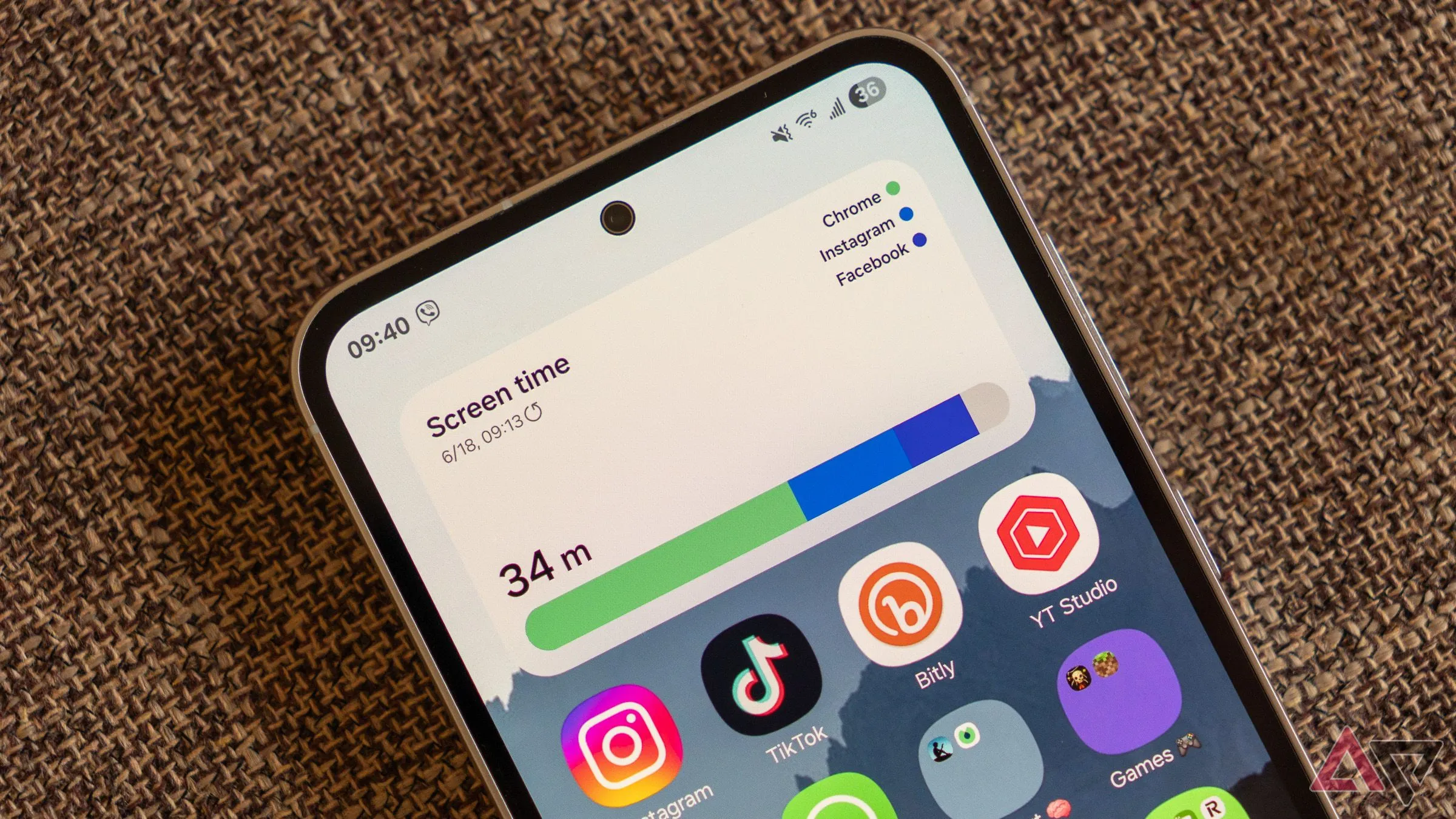
Digital Wellbeing doesn’t just tell you what you’re using, but when. Analyzing the hourly breakdown can reveal interesting patterns in your device usage throughout the day and week. For example, you might notice your screen time spikes significantly in the evenings, on weekends, or even during your lunch break.
 Samsung Galaxy phone displaying the screen time widget on the home screen
Gaining this awareness about when you’re most active on your phone, especially during periods of excessive use, can be a powerful motivator. Seeing that you spend a large chunk of your lunch break scrolling, for instance, might inspire you to swap your phone for a book or take a walk instead. Understanding these patterns is the first step toward making conscious changes to your daily routine.
5. See How Many Times You Unlock Your Phone and Open Apps
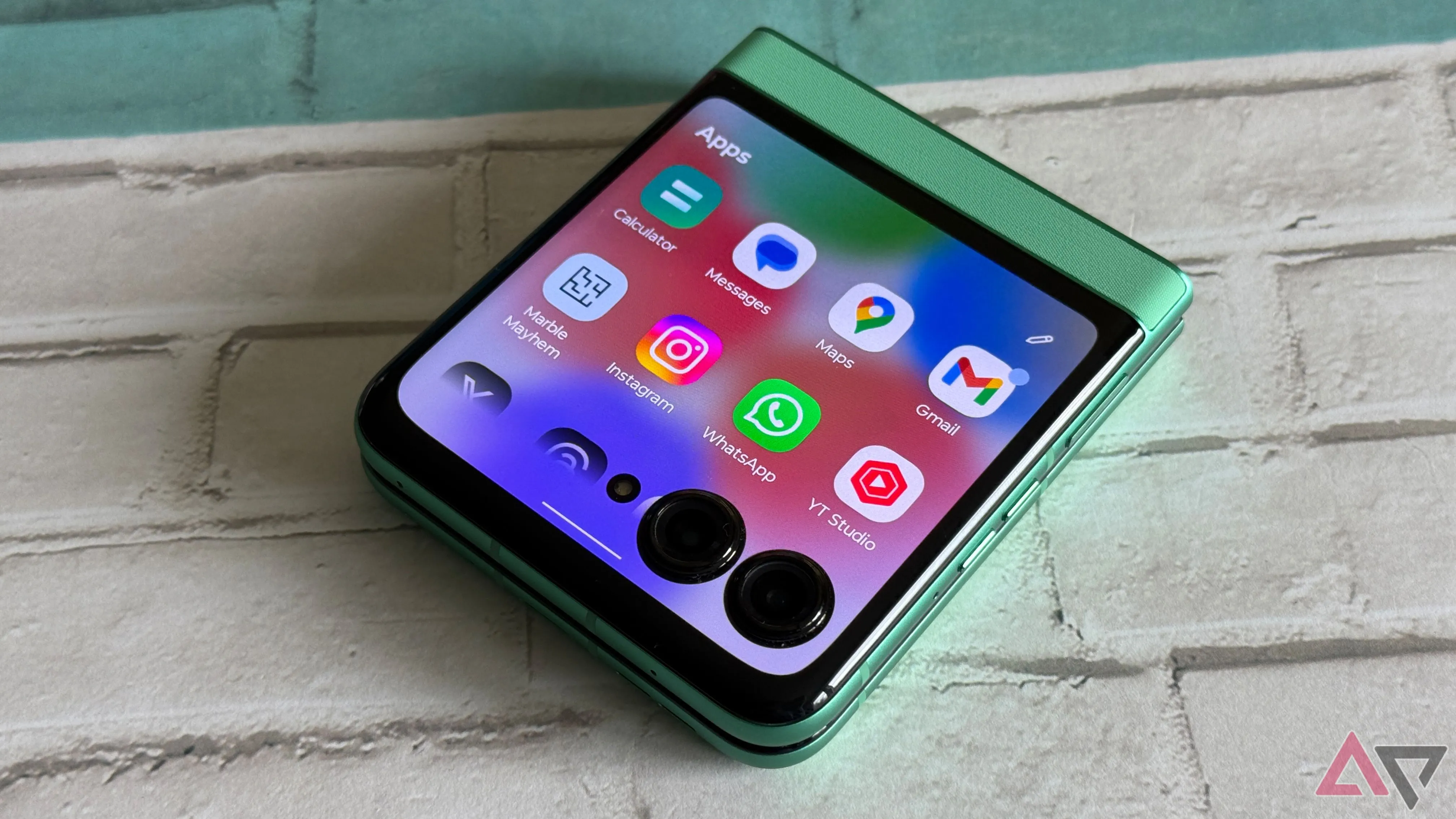
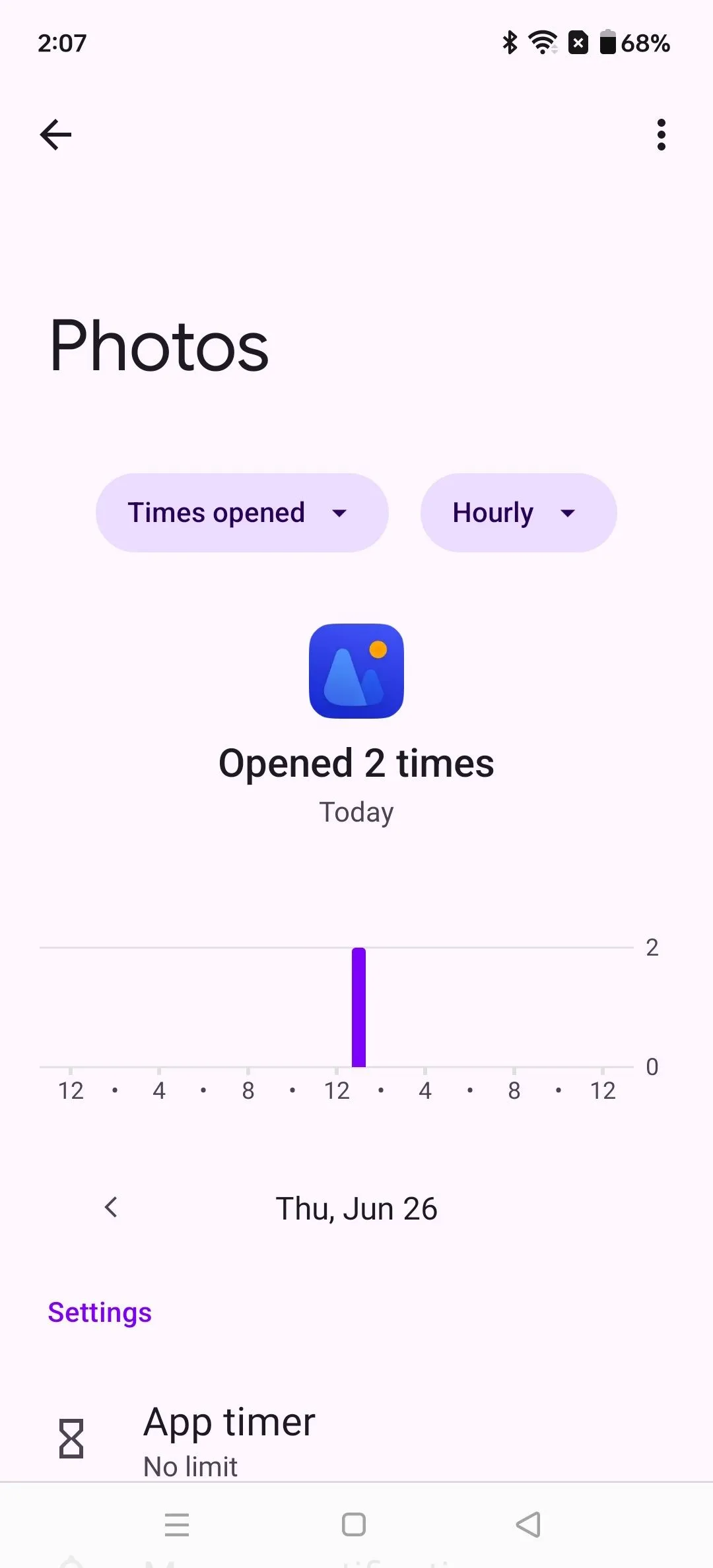
Beyond just measuring how long you use apps, Digital Wellbeing can show you how often you open them and even how many times you unlock your phone throughout the day. By selecting the “View activity details” option and changing the view to “Times opened,” you get a whole new perspective on your habits.
 Motorola Razr external screen showing app icons in a panel
This view shows you the total number of unlocks in a day or week and lists apps by how frequently you opened them. Tapping into a specific app reveals an hourly or daily graph of its open frequency. This insight is particularly fascinating as it highlights impulsive behavior – grabbing your phone just to “check” something quickly, even if you don’t end up spending much time in the app. Realizing you unlock your phone dozens or hundreds of times a day can be a wake-up call. Features like Always on Display, which shows key information without needing a full unlock, can sometimes help reduce these frequent interactions, as reflected in your Digital Wellbeing data.
 Digital Wellbeing activity details view showing how many times the Photos app was opened hourly
6. Understand Your Bedtime Habits with Bedtime Mode
Bedtime mode, a built-in Digital Wellbeing feature, is designed to help you wind down and improve your sleep hygiene. While it doesn’t track your sleep quality (you’d need a dedicated tracker for that), how you interact with your phone when Bedtime mode is active is very telling.
 A woman sleeping peacefully, illustrating healthy sleep habits
Setting a schedule for Bedtime mode (which can grayscale your screen, silence notifications, and restrict apps) creates boundaries for phone use before sleep. Noticing if you consistently override these settings or find yourself still picking up your device provides insight into your pre-sleep habits and potential reliance on your phone right before bed. For many, simply using this feature consistently makes a noticeable difference in falling asleep faster by reducing digital distractions. You can learn how to set it up effectively in our guide on How to set up and use Bedtime mode on your Android phone.
 Android phone screen displaying the Bedtime mode settings page
Balancing screen time is tough, especially with work and social lives intertwined with our devices. But gaining awareness through tools like Digital Wellbeing is the first step to making healthier choices. Beyond managing your digital habits, remember your eyes need a break too! Consider using features like blue light filters and following the 20-20-20 rule (every 20 minutes, look at something 20 feet away for at least 20 seconds) to reduce eye strain. Check your Digital Wellbeing settings today and see what surprising insights your Android reveals about your phone habits.