Nothing ruins the excitement of a new game like poor performance. You’ve got a powerful graphics card, but your frame rates are still low or stuttering. The culprit? Often, it’s a CPU bottleneck. This happens when your CPU (Central Processing Unit) can’t keep up with your GPU (Graphics Processing Unit), leaving your graphics card waiting for instructions and unable to work at its full potential.
Contents
- How to Check for a CPU Bottleneck
- Quick Check: Tweak Your Graphics Settings
- Use Real-Time Monitoring Tools
- Dive Deeper with Performance Capture
- Clever Ways to Reduce a CPU Bottleneck (Without Buying New Parts)
- Increase Your Graphics Settings
- Turn Off Upscaling (DLSS or FSR)
- Increase Your Resolution Virtually
- Embrace Frame Generation
- The Takeaway
A CPU bottleneck can feel frustratingly vague, but don’t worry – it’s a common issue, and you don’t always need to buy new hardware to improve things. This guide will walk you through simple ways to check if you have a CPU bottleneck and smart tricks to boost your gaming performance without upgrading your processor.
 Components inside a gaming PC case with colorful lighting
How to Check for a CPU Bottleneck
Pinpointing a CPU bottleneck helps you understand exactly what’s limiting your gaming PC. Here are a few straightforward methods, from a quick check to deeper analysis tools.
Quick Check: Tweak Your Graphics Settings
One easy way to get a hint about a CPU bottleneck is to play with your game’s graphics settings and resolution.
Here’s the idea: lowering settings and resolution significantly reduces the workload on your GPU. If you drop everything down and your frame rate stays pretty much the same (or even gets worse in some rare cases), it strongly suggests your CPU is the limiting factor. Your GPU now has tons of headroom, but the CPU is still the bottleneck, holding back the potential performance increase.
This method is fast, but it’s not perfect. It won’t tell you how severe the bottleneck is, and a small bottleneck at your preferred high settings might become much more obvious when you lower the load on the GPU. Think of it as a first clue, not a definitive diagnosis.
Use Real-Time Monitoring Tools
For a clearer picture, real-time monitoring tools are your best friend. These overlays show you exactly what your hardware is doing while you play. The key metric to look for is “frame time” for both your CPU and GPU. Frame time is the amount of time it takes each component to render a single frame.
If your CPU frame time is consistently higher than your GPU frame time, you’ve got a CPU bottleneck. This means your CPU is taking longer to prepare the data the GPU needs for rendering each frame, forcing the GPU to wait.
While popular tools like RTSS, Nvidia’s GeForce Experience overlay, and AMD’s Radeon Software overlay can show basic stats like usage percentage, a utility like Special K offers detailed frame time graphs that are invaluable for diagnosing bottlenecks. Special K is a powerful tool often called the “Swiss Army Knife” for PC gaming thanks to its many features, including advanced monitoring widgets.
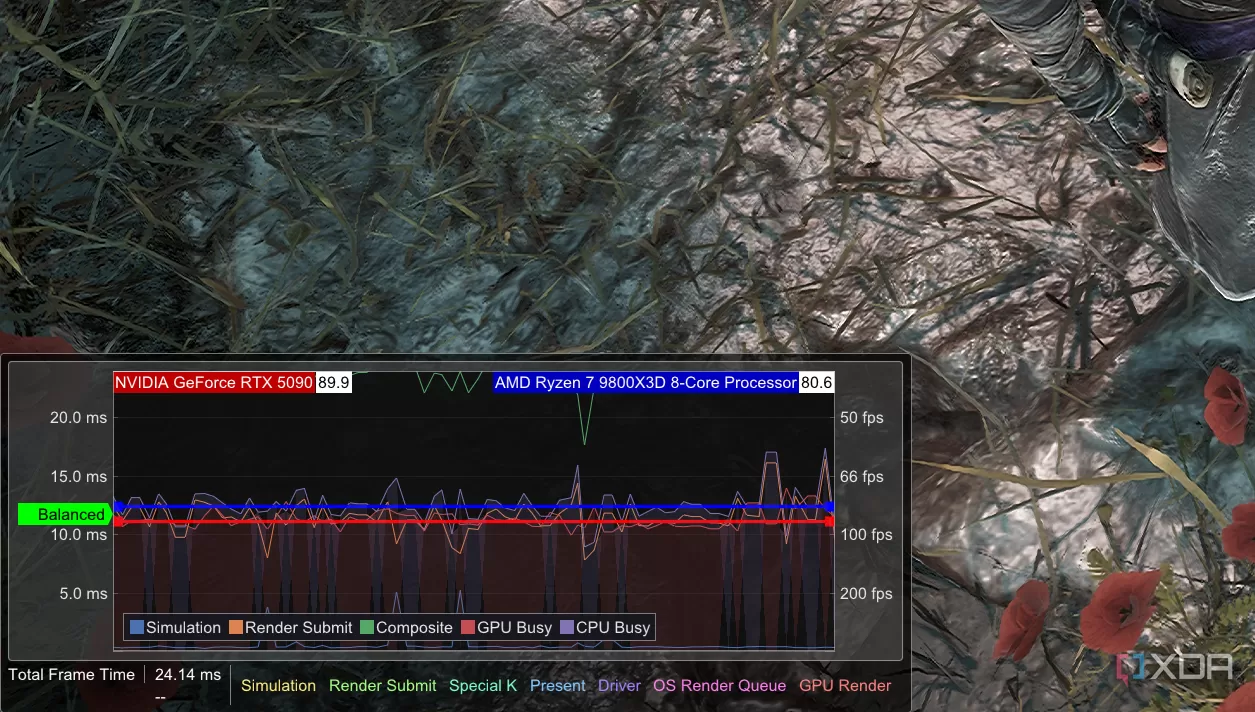 Real-time performance monitoring overlay in a PC game, showing CPU and GPU frame time graphs
The gap between your CPU and GPU frame times indicates the bottleneck’s severity. A small gap means a minor bottleneck, while a large gap shows a significant one.
Dive Deeper with Performance Capture
If you want to analyze your performance beyond real-time numbers, performance capture tools are the way to go. These programs log your gaming data over time, allowing for detailed analysis. Tools built on Intel’s PresentMon, like CapFrameX, are excellent for this.
CapFrameX lets you record performance during gameplay sessions and then review the data. You can plot CPU and GPU frame times on a graph over the entire recording, offering a visual representation of how the bottleneck behaves throughout different game scenarios. This provides the same core information as real-time tools but in a format that’s easier to study and compare across different runs or settings.
 CapFrameX software logo and description for PC gaming benchmarking and analysis
Clever Ways to Reduce a CPU Bottleneck (Without Buying New Parts)
So, you’ve found a CPU bottleneck. Before you start pricing out new processors, try these methods designed to shift workload away from your CPU or generate frames differently.
Increase Your Graphics Settings
This might sound counter-intuitive, but hear me out. If your CPU is bottlenecking your high-end GPU, it means your GPU isn’t working as hard as it could be. By increasing demanding graphics settings like texture quality, anti-aliasing, shadows, or ray tracing, you put more strain on the graphics card.
In scenarios with a CPU bottleneck, making your GPU work harder can actually lead to higher overall performance or smoother frame times because you’re better balancing the load between the CPU and GPU. It’s like asking the faster worker (GPU) to do more tasks so the slower worker (CPU) isn’t the only one holding things up. This works best in games with significant visual options that heavily impact GPU load.
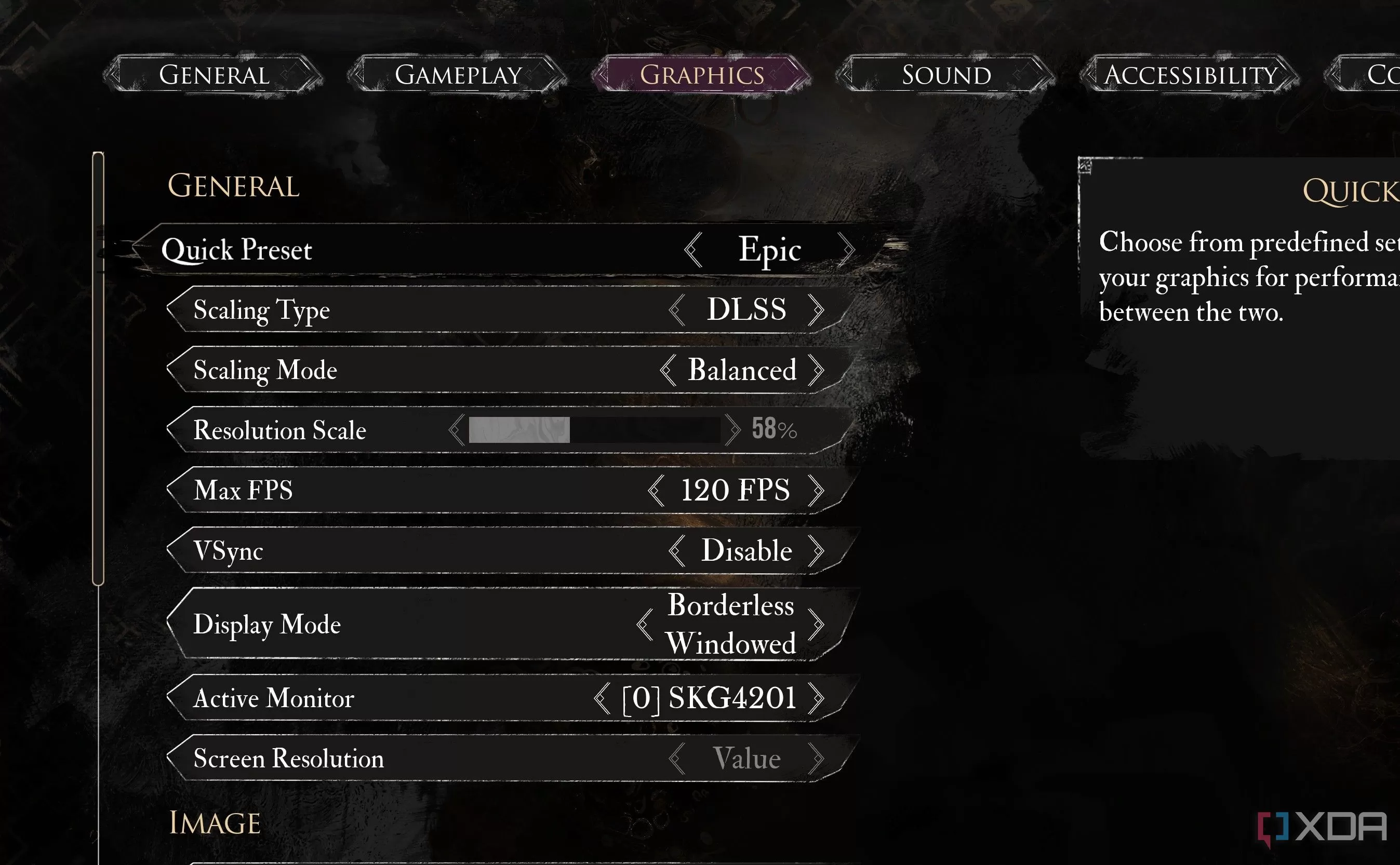 Detailed graphics settings options menu in a video game interface
Turn Off Upscaling (DLSS or FSR)
Technologies like Nvidia’s DLSS (Deep Learning Super Sampling) and AMD’s FSR (FidelityFX Super Resolution) render the game at a lower resolution and then upscale it to your monitor’s native resolution. While fantastic for boosting frame rates by reducing GPU load, this process can increase the workload on your CPU, potentially making a CPU bottleneck worse.
If you’re using DLSS or FSR, especially on quality settings that still render at a relatively low base resolution, try turning it off. See if your performance changes significantly. If disabling upscaling leads to a noticeable performance uplift (despite the native resolution being harder for the GPU), it highlights how the upscaling process was adding pressure to your CPU. Upscaling is great when you’re GPU-bound, but can hurt when CPU-bound.
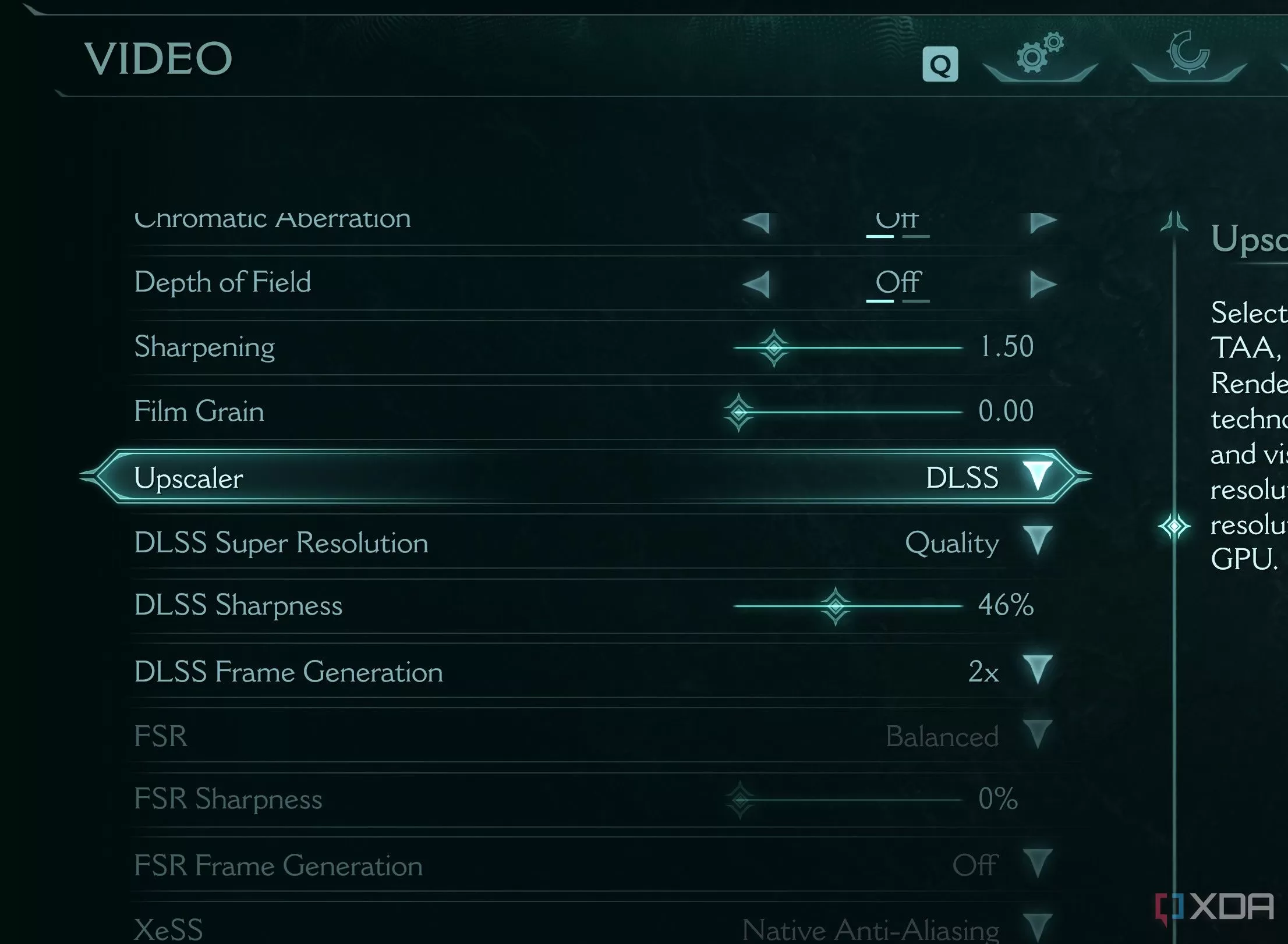 Nvidia DLSS settings menu in a game, showing quality options
Increase Your Resolution Virtually
Going above your monitor’s native resolution is another way to make your GPU work harder. While some games allow this natively, Nvidia (DSR/DLDSR) and AMD (VSR) offer tools to trick your system into rendering at higher-than-native resolutions.
You enable this in your graphics driver control panel (Nvidia Control Panel or AMD Radeon Software). This forces your GPU to render significantly more pixels, dramatically increasing its workload. The image is then scaled back down to fit your monitor, often resulting in a sharper picture while also helping to balance the load away from the CPU.
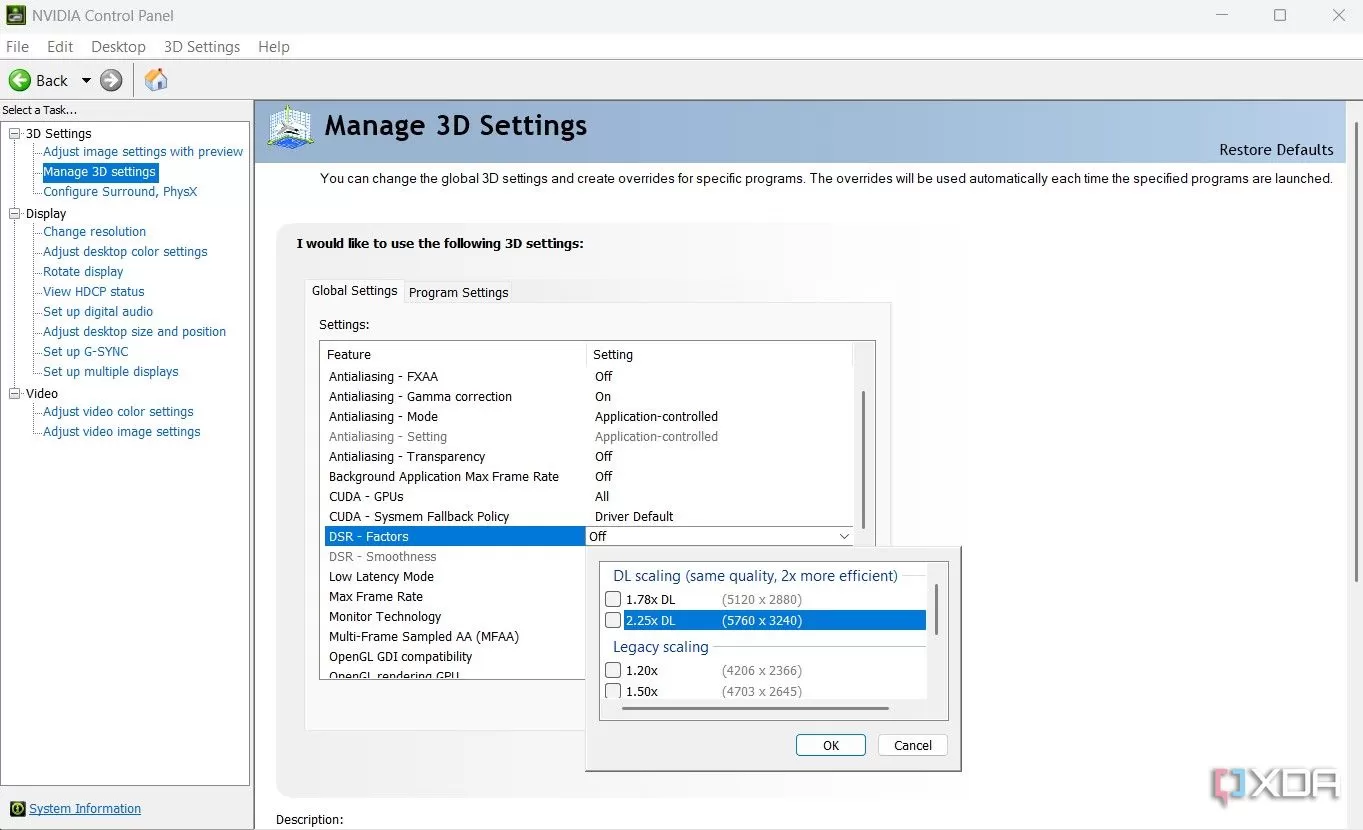 Nvidia Control Panel setting for Dynamic Super Resolution (DSR)
Embrace Frame Generation
Frame generation is perhaps the most effective way to bypass a CPU bottleneck. Unlike traditional rendering, which relies heavily on the CPU preparing frames for the GPU, frame generation technologies like Nvidia’s DLSS 3/4 and AMD’s FSR 3 create entirely new frames in between the frames rendered by the traditional pipeline.
Because these generated frames are created after the CPU and original GPU rendering is done, the CPU bottleneck has minimal impact on the generated frames. This can dramatically increase your perceived frame rate, even if your CPU is struggling with the base rendering pipeline.
While DLSS 3/4 (especially with features like Multi-Frame Generation on newer cards) is generally considered the best quality option, FSR 3 is widely compatible with many GPUs. There are even third-party tools like Lossless Scaling that offer frame generation for games that don’t support it natively. While the quality might vary, frame generation is a powerful tool to boost performance when CPU-limited.
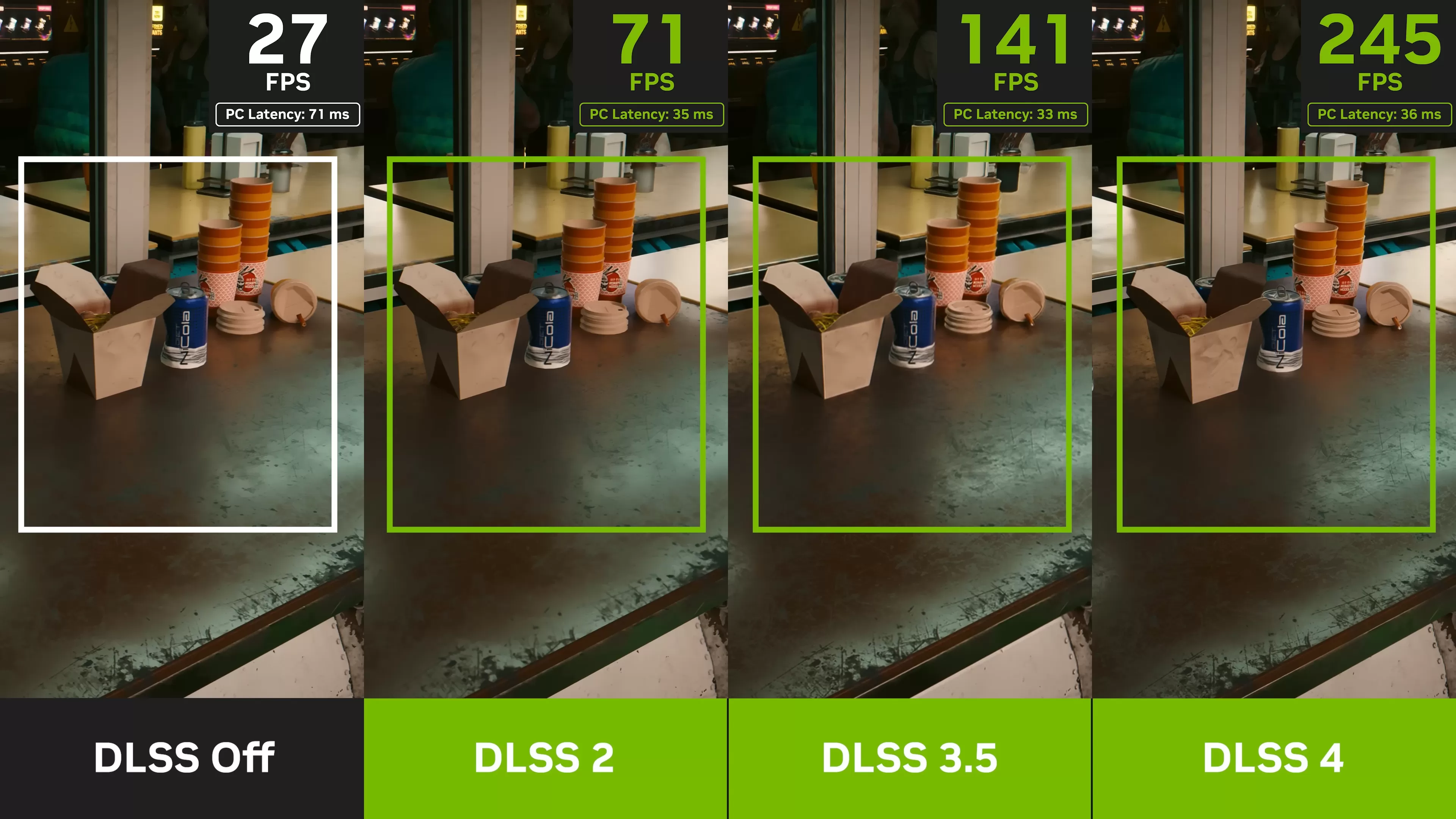 Comparison chart showing quality differences between DLSS versions 2, 3, and 4
The Takeaway
CPU bottlenecks are a reality in PC gaming, especially as graphics cards get more powerful. Knowing how to identify them using simple tests or monitoring tools is the first step. While upgrading your CPU is the ultimate long-term solution, these clever workarounds – pushing your graphics settings, using virtual resolutions, or enabling frame generation – can significantly improve your gaming experience right now without spending extra cash on new hardware.
Want to learn more about PC performance myths or specific tech like DLSS? Explore some of our related articles!