Think you know how you use your phone? Google’s Digital Wellbeing tools might just prove you wrong! Beyond just tracking screen time, this built-in Android feature acts like a detective for your digital habits, revealing fascinating and sometimes surprising insights. With screen time averages on the rise (some reports show Americans spend over 5 hours daily on phones!), understanding how you use your device is the first step to finding a healthier balance. Let’s dive into six cool things Digital Wellbeing can show you.
Contents
Digital Wellbeing is a free tool on most modern Android phones designed to help you gain awareness and manage your phone usage. It’s available right in your device’s settings. Here’s what you can learn:
 Digital Wellbeing app shown on a phone screen resting on a wooden desk
How Many Notifications Flood Your Day?
Do you feel constantly pulled to check your phone? Notifications are often the culprit. They buzz, ding, and flash, demanding your attention. Without properly managing them, it’s easy to get sucked into checking your phone even when you don’t need to.
Digital Wellbeing shows you exactly how many notifications you receive each day. Even better, it breaks it down by app. You might be surprised to see which apps are the biggest notification culprits. Knowing this can empower you to take action, whether that’s muting apps you don’t need alerts from or uninstalling attention-hungry ones.
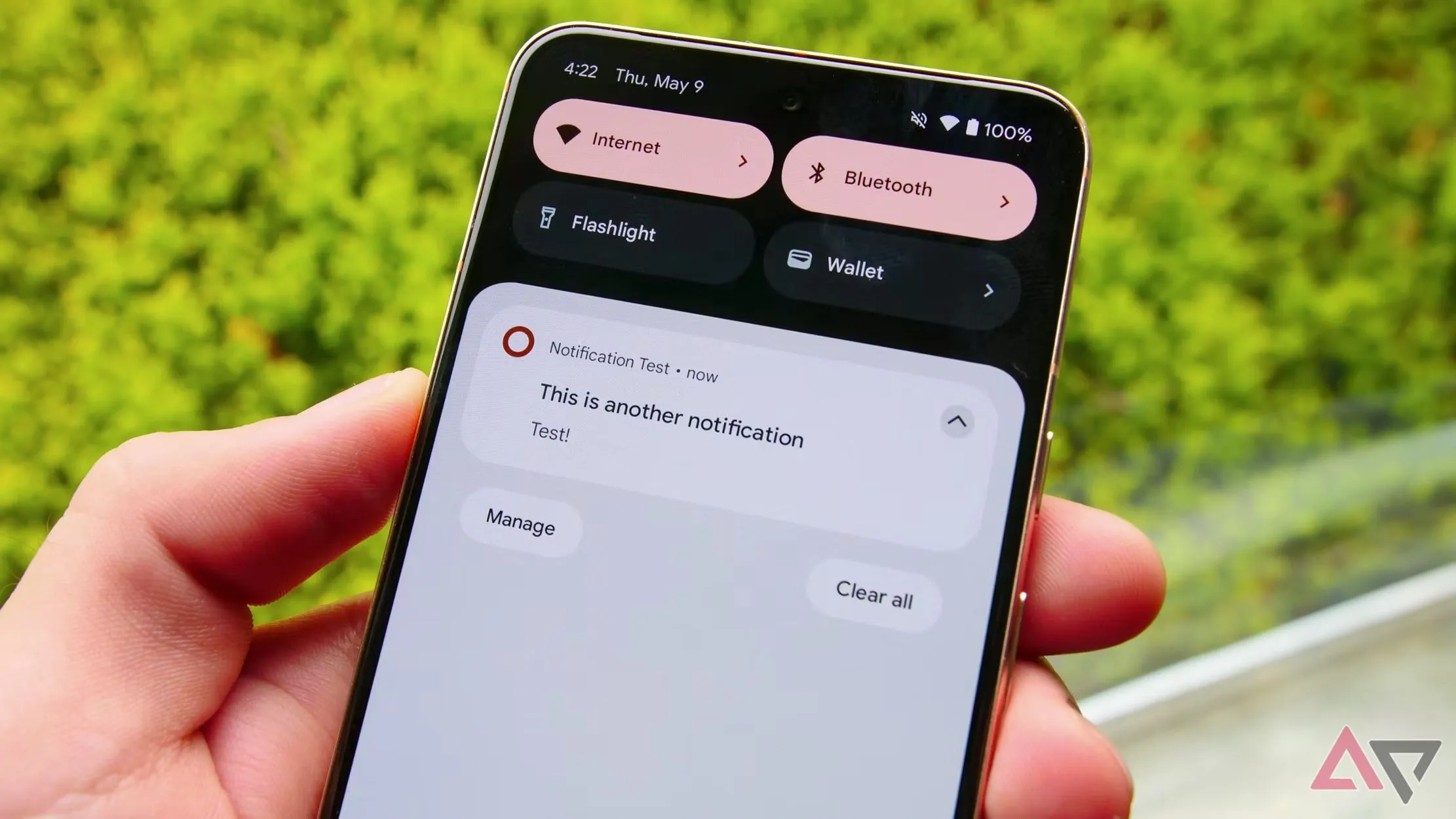 Photo of a person holding a Google Pixel phone in front of a green hedge, illustrating notifications.
Which Apps Are Your Biggest Time Sinks?
This is probably the most well-known function, but seeing it laid out can still be an eye-opener. Digital Wellbeing clearly shows you which apps you spend the most time in daily.
You can view this data as a graph, sorted by day or even hour. It’s not always just social media apps that top the list. You might find yourself spending a significant amount of time in unexpected places, like settings menus or utility apps. The tool tells you not just which apps, but how long you’re actively using them. This helps you differentiate between apps you open briefly throughout the day and those you get truly lost in.
 Illustration showing five app icons climbing a ladder, symbolizing apps taking up time.
What Websites Do You Visit Most?
If you use Chrome on your Android device, Digital Wellbeing can also track your web browsing habits. By granting the necessary permissions, you can see the websites you visit most frequently and how much time you spend on each.
This activity is listed just like your app usage and can also be sorted daily or hourly. Comparing your web browsing time to app time can reveal interesting patterns. For example, you might find yourself spending a lot of time on a website that also has an app – seeing the total time across both can give you a clearer picture of where your attention is going.
 T-Mobile website displayed on a Samsung Galaxy phone, resting on a wooden surface.
 Screenshot from Digital Wellbeing showing a list of websites visited via Chrome and time spent.
When Are You Most Active on Your Phone?
Digital Wellbeing doesn’t just tell you what you use, but when. It shows you patterns in your screen time throughout the day and across the week. Do you scroll most during your lunch break? Are your evenings dominated by phone use? Is your screen time highest on weekends?
Identifying these peak usage times can make you more aware of triggers for phone use. Maybe you reach for it out of habit during downtime, boredom, or specific transition periods in your day. Recognizing when you’re most active is a powerful step toward potentially changing those habits, like opting for a book or a different activity during your usual scrolling times.
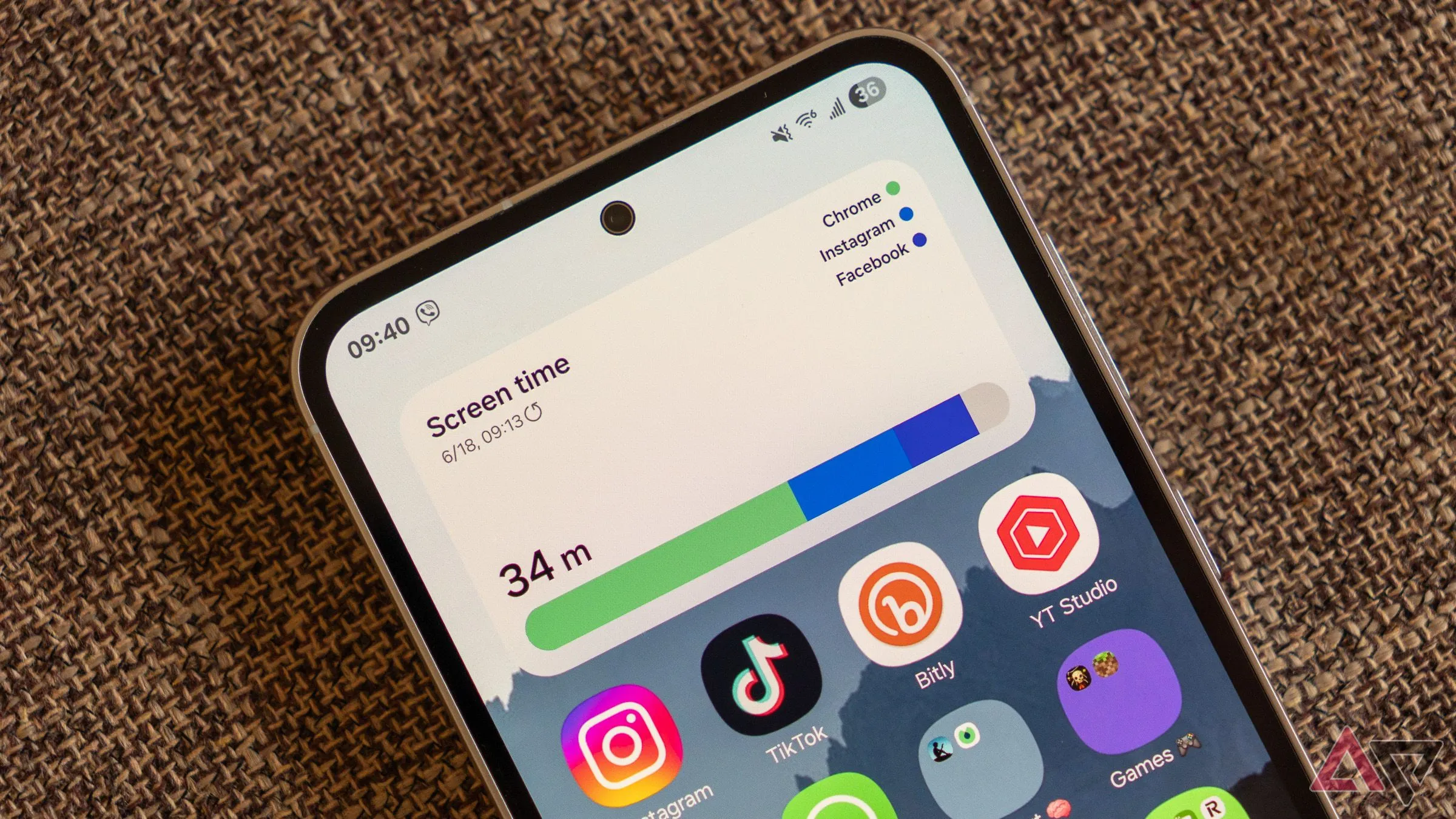 Close-up of a Samsung Galaxy phone showing the screen time widget and home screen icons.
How Many Times Do You Unlock Your Phone and Open Apps?
Here’s a stat that can be surprisingly revealing: how many times you actually pick up your phone and unlock it, or how many times you open a specific app. This metric focuses on frequency rather than just duration.
In Digital Wellbeing’s activity view, you can switch the view to show “Times opened.” It will tell you the total number of phone unlocks daily or weekly. Below that, you see how many times each app was opened. You might find yourself frequently opening certain apps out of habit, even if you don’t spend much time in them each instance. This insight can highlight unconscious behaviors. For example, noticing frequent unlocks might encourage you to use features like Always on Display to see essential info without fully waking your phone.
 Apps panel shown on the external screen of a folded Motorola Razr phone.
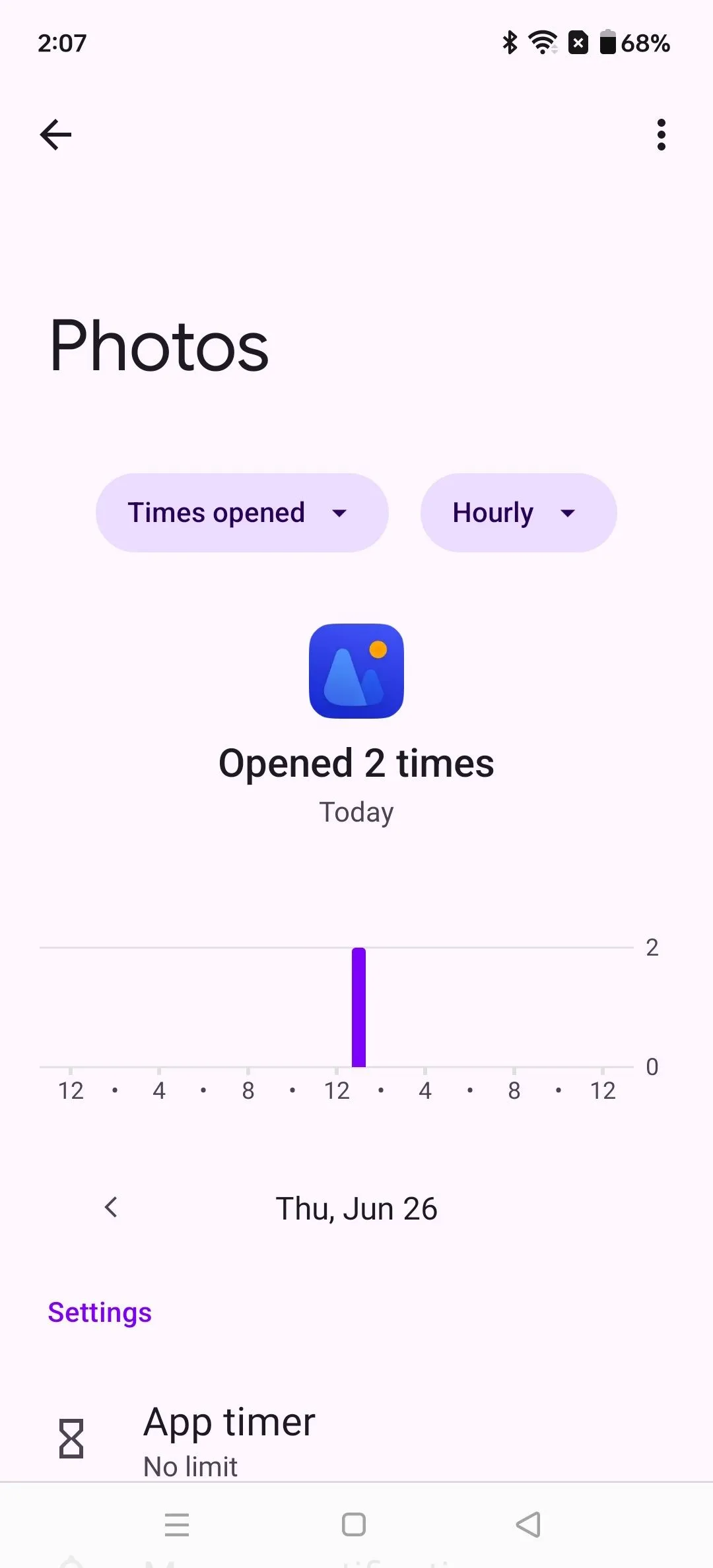 Screenshot from Digital Wellbeing showing the number of times the Photos app was opened hourly.
How Does Your Phone Impact Your Sleep?
While Digital Wellbeing isn’t a sleep tracker itself, its “Bedtime mode” feature is all about promoting healthier sleep habits. By setting a schedule, you can automatically dim your screen, mute notifications, and turn the screen grayscale to make your phone less appealing as bedtime approaches.
Simply using Bedtime mode can give you insight into how your phone interferes with sleep. If you find yourself constantly overriding the mode or picking up your phone despite the visual cues, it highlights that your evening phone use is a hurdle to restful sleep. Many users find that consistently using Bedtime mode helps them wind down faster and potentially fall asleep earlier, revealing the direct impact of late-night scrolling on sleep duration.
 Photo of a woman sleeping peacefully in a bed.
Understanding your phone habits is the first step towards a healthier digital life. Google’s Digital Wellbeing provides a wealth of data right at your fingertips, helping you see the surprising ways you interact with your device daily. Whether it leads you to mute annoying notifications, cut back on time-wasting apps, or establish a better bedtime routine, these insights are invaluable for managing your relationship with your phone.
Ready to explore your own habits? Dive into the Digital Wellbeing settings on your Android device today. And don’t forget to give your eyes a break from all that screen time; simple steps like using blue light filters and following the 20-20-20 rule can make a big difference.