Imagine having a super-smart assistant built right into your web browser, ready to help you understand anything you see online. That’s essentially what Google is rolling out with its new Gemini integration in Chrome, putting the power of its AI model directly at your fingertips while you browse. This isn’t just another web app; this AI can actually “see” and understand the content on the webpage you’re visiting, promising a new level of online assistance.
Contents
This early look shows Gemini in Chrome is a big step towards Google’s vision of making AI more proactive and helpful, acting almost like a digital agent. While it’s still a work in progress and currently only available for select users (AI Pro or AI Ultra subscribers using specific Chrome beta versions), its potential is clear.
What Can Gemini in Chrome Do Right Now?
Getting started is simple: a new Gemini button appears in Chrome’s top corner. Clicking it opens a chat window where you can ask questions about the page you’re on.
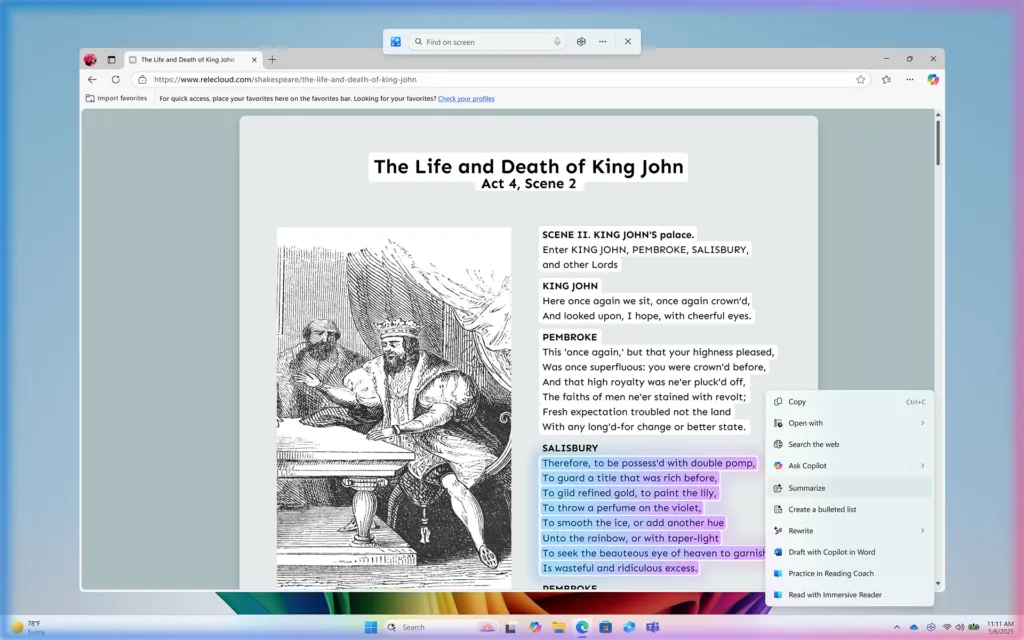
One of the most practical uses I found is summarizing articles. Instead of scrolling through long texts, you can ask Gemini for the key points. This works for news articles, blog posts, or any written content. However, Gemini can only read what’s currently visible on the page. If there’s content hidden or collapsed (like a comments section), you need to expand it before asking Gemini to summarize. It also follows you across tabs but focuses on one page at a time.
 Gemini AI summarizing comments in Chrome browser
Beyond text, Gemini is surprisingly helpful with videos, especially on platforms like YouTube. You can play a video and ask Gemini questions about what’s happening. For instance, watching a DIY video, I could ask “What tool is he using?” and Gemini would identify it based on the visuals. It could also pinpoint specific components in a tech video or even summarize parts of a video you haven’t watched yet, though this is more reliable if the video has structured sections.
Another neat trick is pulling specific information from videos, like recipes. Instead of pausing and writing down ingredients and steps from a cooking demo, you can ask Gemini to extract the recipe for you. This saves a significant amount of time and effort.
This capability extends beyond videos. While browsing shopping sites like Amazon, I could ask Gemini to point out specific items mentioned in a listing or description.
If you prefer speaking over typing, Gemini in Chrome includes a “Live” feature. Tap the button, ask your question out loud, and Gemini will respond using synthesized speech.
 Screenshot showing Gemini summarizing Amazon product listings
Where It’s Still Finding Its Feet
As an early access feature, Gemini in Chrome isn’t perfect yet. I encountered some inconsistencies. When asking about a person’s real-time location in a video, it initially said it couldn’t access real-time info, only to provide the location from the video description on a second try. Similarly, asking for a link to buy a specific item shown in a video didn’t always work, again citing a lack of real-time inventory access, though it could find links for other related products.
Another minor issue is the size of the Gemini window. On smaller laptop screens, the pop-up can feel a bit large, and Gemini’s responses can sometimes be quite lengthy, requiring more scrolling than ideal for a quick glance. While you can expand the window, it takes up valuable screen real estate. AI is supposed to save you time with concise answers, and Gemini doesn’t always deliver that unless specifically prompted. The follow-up questions it asks can also feel a bit repetitive.
 Gemini extracting a recipe from a YouTube video in Chrome
The Exciting Future: Becoming Your Browser’s Agent
Despite these early hiccups, the potential for Gemini in Chrome is immense. This integration feels like the foundation for Google’s bigger AI ambitions. Google is working towards making its AI “agentic,” meaning it can understand context and perform tasks for you.
Think about the possibilities: after summarizing a restaurant’s menu, you might ask Gemini to place a pickup order directly. Or while researching a trip, you could ask it to automatically bookmark relevant pages or save helpful YouTube videos to your “Watch Later” playlist.
Google’s “Agent Mode,” previewed with projects like Mariner, aims for AI to manage multiple tasks and search the web proactively. Bringing these advanced capabilities to Gemini right inside your browser would transform how we interact with the internet, making it a truly dynamic and helpful environment. While Gemini in Chrome isn’t a full agent yet, it’s a compelling glimpse into a future where your browser doesn’t just display information but actively helps you use it.