Google’s Gemini Live feature, which allows users to share their device’s camera or screen with the AI assistant for real-time help, is now fully available to all Android and iOS users. This expansion makes the interactive feature, powered by Project Astra, accessible beyond initial limited rollouts to premium subscribers and specific devices.
Contents
The rollout completes a phased launch that began earlier this year.
What is Gemini Live Camera and Screen Sharing?
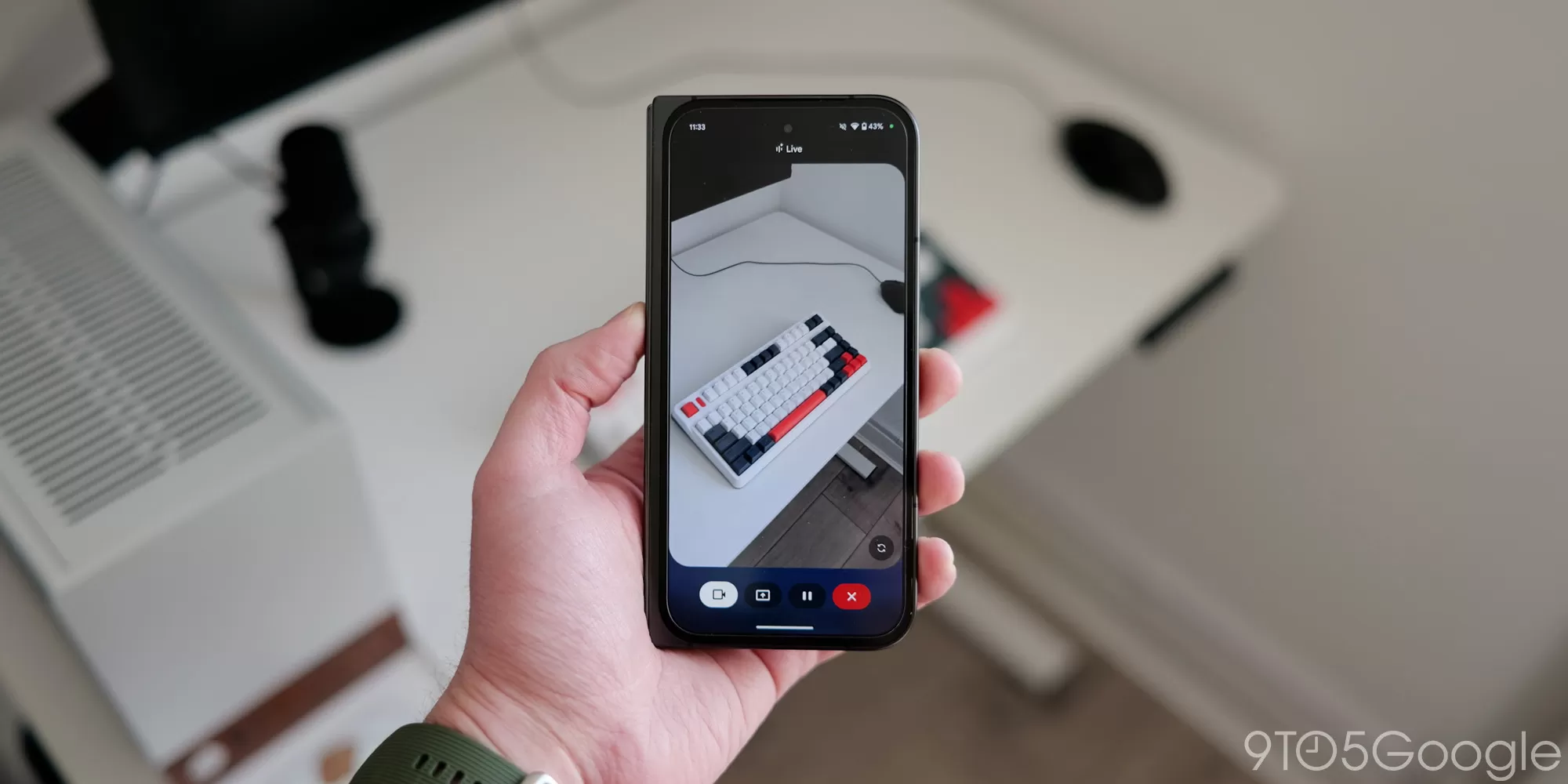
Gemini Live’s camera and screen sharing capability enables users to get assistance from Gemini based on what their device camera sees or what is displayed on their screen. For example, you could point your camera at an object and ask Gemini about it, or share your screen while using an app and ask for guidance. This aims to provide more contextual and immediate help from the AI.
Feature Rollout Timeline
The feature, first teased at Google I/O 2024, started its initial deployment in March. It first became available on newer devices like the Pixel 9 and Samsung Galaxy S25 series. Following this, access was extended to Gemini Advanced subscribers.
In April, Google announced that the feature would be coming to all free Android users. An expansion to iOS was then announced at I/O 2025 in May. The current announcement confirms that the ability to share your camera and screen is now available to all Gemini users on both Android and iOS platforms, including those using the free version.
How to Use the Feature
To access the camera and screen sharing feature in Gemini Live:
- Open the Google Gemini app on your Android or iOS device.
- Tap the “Live” waveform icon located in the bottom-right corner of the prompt bar. This opens the fullscreen Gemini Live interface.
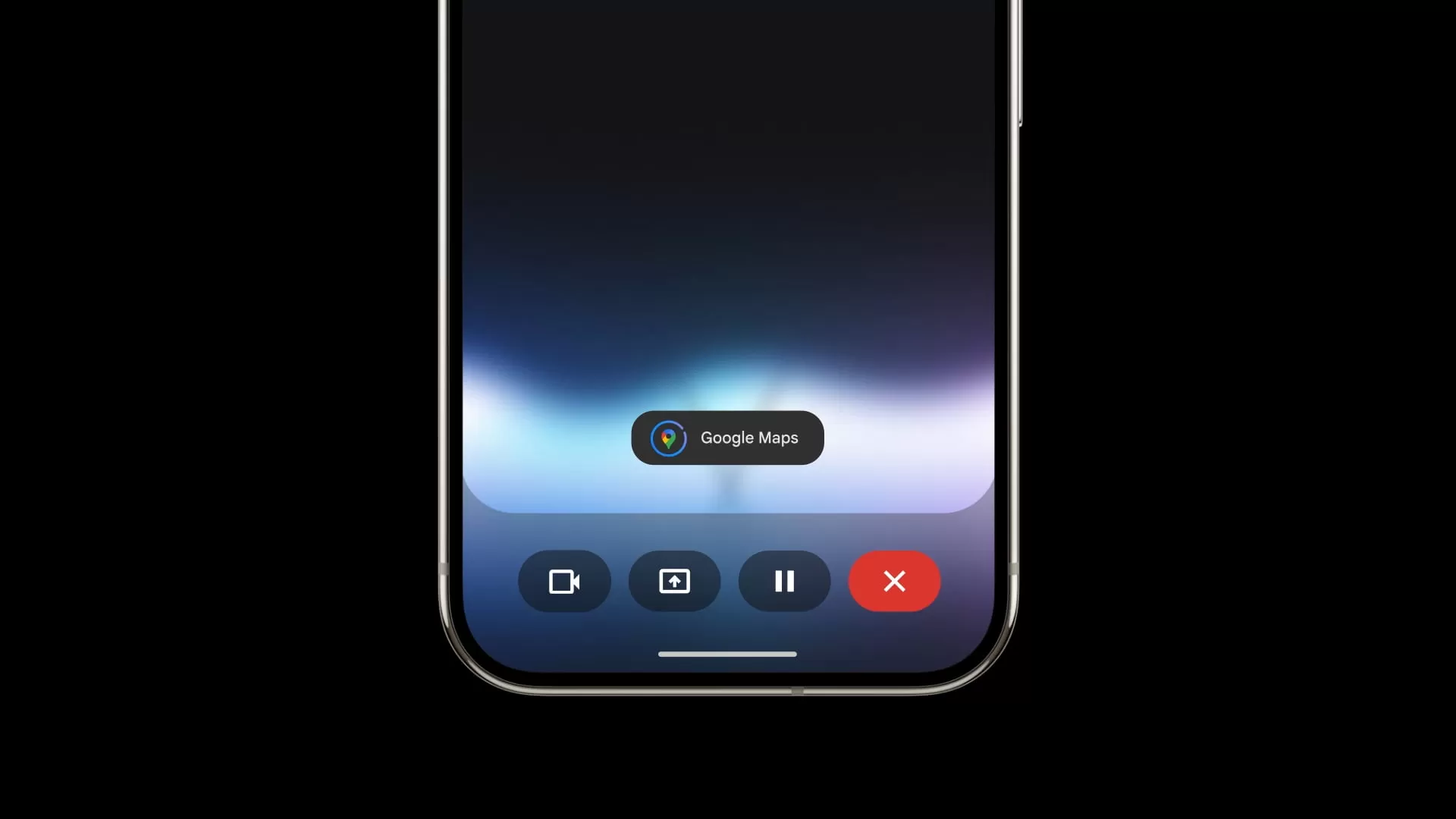
- You will see new buttons on the left side for camera and screen sharing.
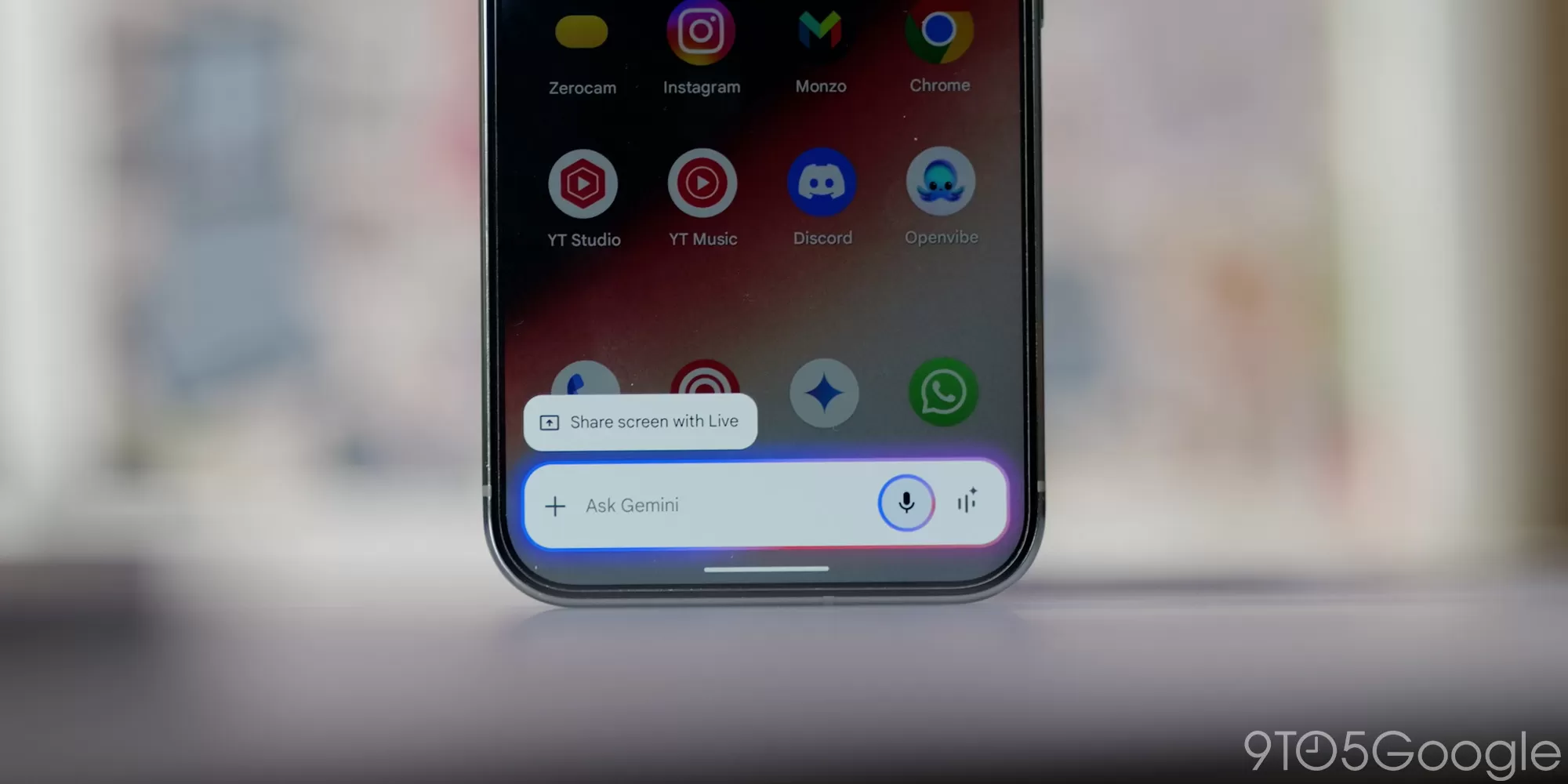
On Android, you can also initiate screen sharing by launching the Gemini overlay and selecting “Share screen with Live.”
Screen Sharing
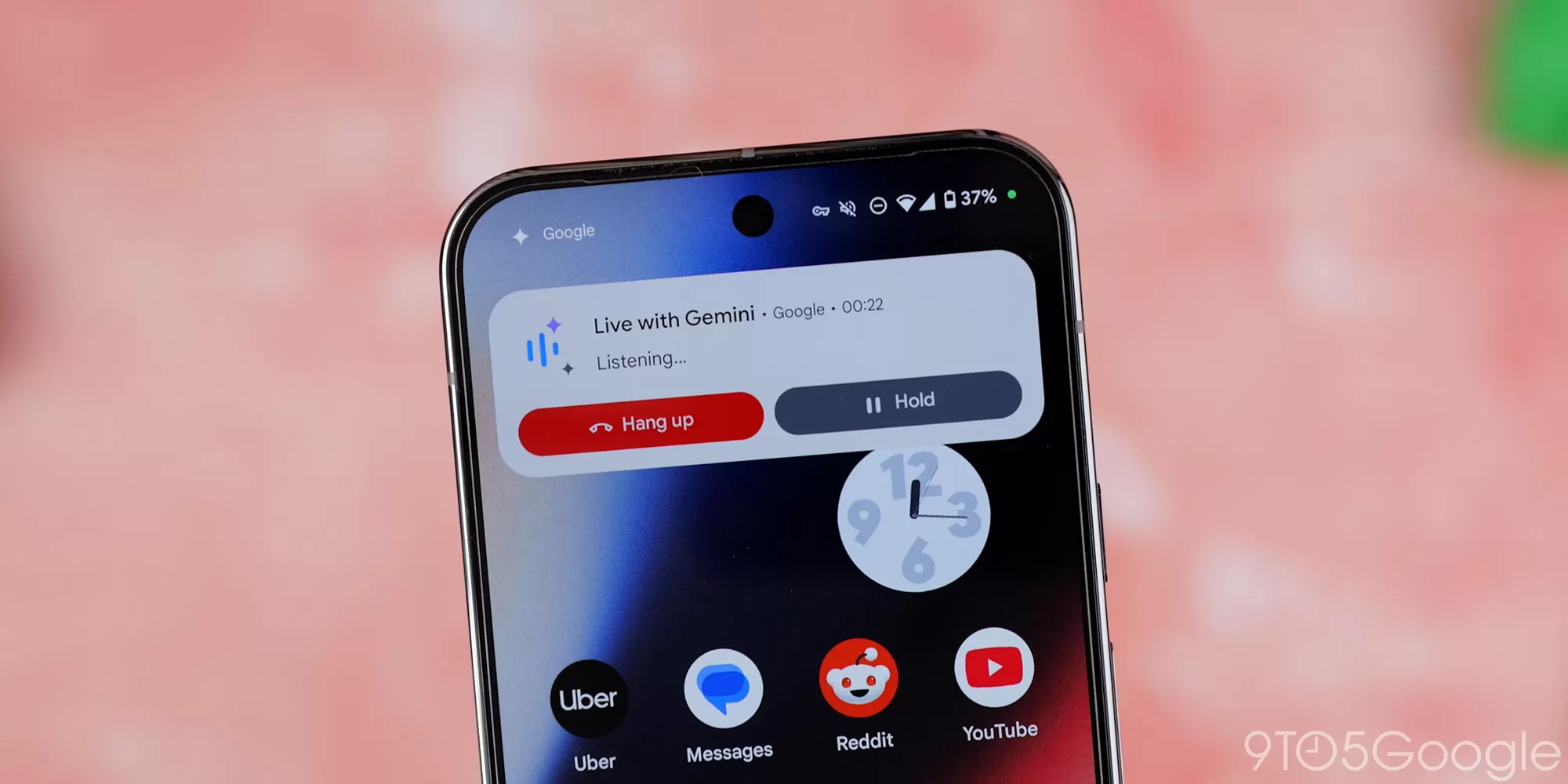
When you choose screen sharing, you will need to confirm the action at the system level. After confirmation, you can navigate to any app or website you want Gemini to see and ask questions. You can stop the screen stream by tapping the indicator in the top-left corner of your phone screen while continuing the conversation in Gemini Live.
Camera Sharing
Selecting camera sharing adds a viewfinder to the fullscreen Gemini interface. Streaming from the camera works only when the Gemini app is open; exiting the app or turning off the display will stop the stream. A button in the corner allows you to switch between the front and rear cameras.
Upcoming Features
Google has also indicated that Gemini Live will soon gain the ability to use “apps” (previously referred to as Extensions) to perform actions directly within the conversation. Initial supported apps include Google Calendar, Keep, Maps, and Tasks. This integration is expected to roll out in the coming weeks, allowing Gemini to assist with tasks like creating appointments or finding location details based on the ongoing conversation or shared context.
The full rollout of camera and screen sharing marks a significant step in making Gemini a more interactive and context-aware AI assistant on mobile devices.